# Bizum Redirect

<img height="108" width="108" alt="bizum" title="Bizum" src="https://static-devportal-ux.sensedia-eng.com/Pagonxt/production/documentations/download-1765913610450-cwuo6jz7.png" />

Bizum is a widely adopted instant mobile payment solution in Spain, created through the collaboration of local banks. It allows customers to pay directly from their bank account using only a phone number, delivering instant confirmation without exposing card details. Unlike the backend-to-backend [Bizum API Rest](/en/global-api/sep-api/payment-guides-api/apms/bizum-api-rest) integration, this flow generates a redirect: the API response returns a signed URL and form parameters that your backend uses to send the customer to the Bizum payment gateway. The customer completes the payment there and is redirected back to your `callback_url`. The Global API supports Bizum Redirect in two flows:

* **Single-step flow** – authorize and capture the payment in one request using `INSTANT_TRANSFER`.
* **Two-step flow** – validate the customer's Bizum account in one step using `INSTANT_TRANSFER_PREAUTH`, then capture the payment later (within 30 days) when you are ready to fulfill the order.
<Callout type="warning">

**Bizum does not support transaction cancellations in the two-step flow**. An authorization does not "hold" funds, if the customer's balance drops before you perform the **Capture**, the transaction will fail due to insufficient funds.

</Callout>

This guide consolidates the full instructions for both flows, including request examples, redirect handling, callback processing, and capture logic.

## Requirements

Before integrating Bizum you need to:

* Generate an access token through the [Authentication endpoint](https://docs.globalgetnet.com/en/products/online-payments/regional-api/swagger#tag/authentication).
* Configure a public HTTPS `callback_url` that receives status updates after customers leave the Bizum interface.

> Bizum is only available in Spain (`EUR`). Contact your Account Manager to enable this payment method for your seller account.
>
> **Maximum amount:** Bizum transactions are capped at €15,000. The customer's bank can enforce a lower limit, so a transaction below €15,000 may still be refused.

## Use Cases Specifics

When integrating any Getnet solution, market-specific requirements apply. Bizum is only available in Spain and only for EUR currency. To know more about the specific requirements of Spain, be sure to review the resources below before you go live:

* [Currency codes](https://docs.globalgetnet.com/en/articles?article=currency-codes)
* [Document types](https://docs.globalgetnet.com/en/articles?article=document-types)
* [Local taxes and regulations](https://docs.globalgetnet.com/en/articles?article=taxes-and-regulations)

You can also use [test cards](https://docs.globalgetnet.com/en/articles?article=test-cards) to simulate specific scenarios.

## Testing Bizum Payments

When testing Bizum payments in the sandbox environment, use the following credentials and amounts to simulate different scenarios.

### Test Phone Number

Use the following phone number for testing Bizum transactions in the sandbox environment:

**Test Phone Number:** `700 000 000`

This phone number will allow you to complete the Bizum payment flow in the test environment without requiring an actual Bizum account.

### Test Amounts

Different transaction amounts will simulate different payment outcomes in the sandbox environment. Use the table below to test various scenarios:

| Amount         | Outcome           | Description                                               |
| :------------- | :---------------- | :-------------------------------------------------------- |
| Less than €5   | Payment confirmed | Transaction is successful and immediately approved        |
| €5 to €10      | Payment confirmed | Transaction is successful with normal processing          |
| €10 to €500    | Payment confirmed | Transaction is successful for standard amounts            |
| More than €500 | Payment refused   | Transaction is declined to simulate high-value rejections |

<Callout type="note">

These test scenarios are only available in the sandbox environment. Production transactions will be processed normally based on the customer's actual Bizum account status and balance.

</Callout>

## Shared Characteristics

The table below summarizes the shared behavior and requirements for both Bizum payment flows.

| Capability           | Details                                                              |
| -------------------- | -------------------------------------------------------------------- |
| Redirect experience  | Customers are redirected to the Bizum gateway (HTML template or URL) |
| Credentials required | Customer’s Bizum-enabled phone number validated by their bank        |
| Confirmation         | Real-time response, followed by redirect + callback                  |
| Notifications        | Register events via the Webhooks API to receive asynchronous status updates. See [Webhooks](#webhooks) for the available events |

All flows return three parameters in the `additional_data` object (`merchant_data`, `signature_version`, and `signature`) that you must use to build an HTML form for redirecting the customer to the Bizum gateway. The form POSTs to the URL provided in `additional_data._links[0].href`. Both flows also send Base64 encoded `merchant_data` that you should decode on your backend to reconcile the transaction.

## Available Features

Use the matrix below to confirm the scenarios currently supported for Bizum.

| Payment flow | Supported countries | Purchases | Refunds | Partial refunds | Multiple refunds | Pre-authorizations |
| :----------: | :-----------------: | :-------: | :-----: | :-------------: | :--------------: | :----------------: |
|   Redirect   |        Spain        |     ✅     |    ✅    |        ✅        |         ✅        |          ✅         |

> To enable Bizum you must work with your Account Manager, who validates eligibility and activates the payment method.

## Single-step Flow (Immediate Capture)

Use this flow when you can fulfill the order immediately. Funds move in the same request that creates the payment.

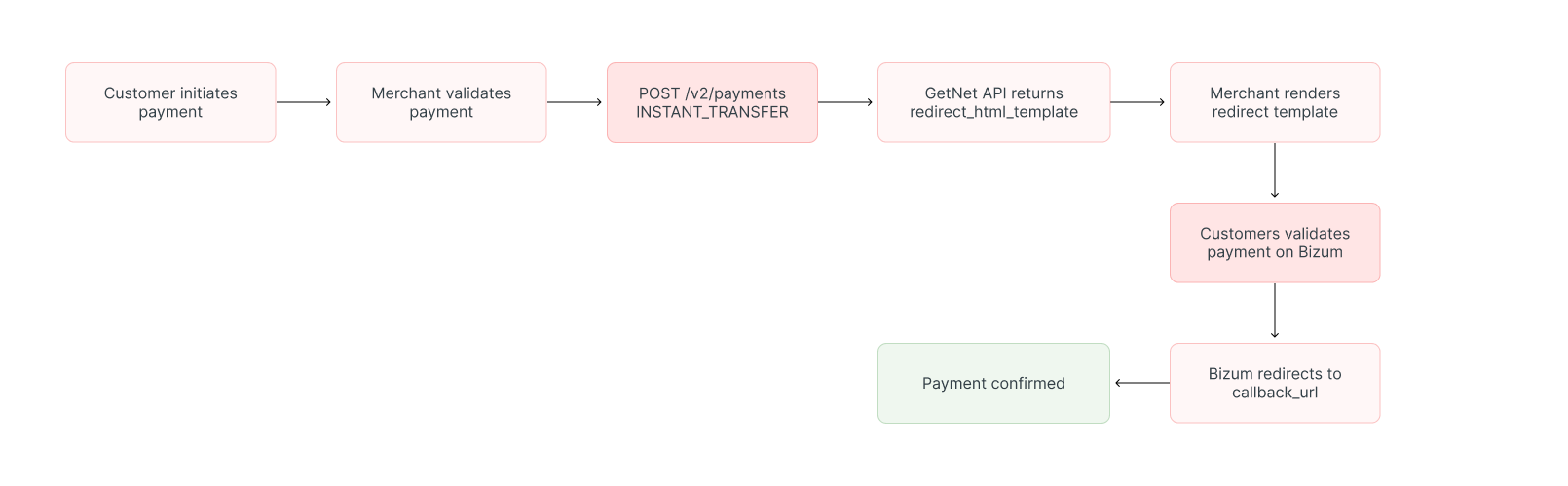
The diagram below provides an overview of the single-step flow:

<img height="246" width="796" src="https://static-devportal-ux.sensedia-eng.com/Pagonxt/production/documentations/diagram-bizum-1-1773077253183-bsvbjv4n.png" />

### 1. Create the Payment Request

Call the [Create – Authorize endpoint](https://docs.globalgetnet.com/en/products/online-payments/regional-api/swagger#tag/payments/post/dpm/payments-gwproxy/v2/payments) with the attributes below.

The table outlines the minimum fields required to create a Bizum single-step payment.

| Attribute        | Description                                              | Required value                   |
| :--------------- | :------------------------------------------------------- | :------------------------------- |
| `payment_method` | Bizum single-step method                                 | `INSTANT_TRANSFER`               |
| `callback_url`   | Where Bizum redirects the customer after success/cancel  | Your HTTPS endpoint              |
| `amount`         | Transaction amount in cents. Maximum `1500000` (€15,000) | Integer (e.g. `5000` for €50.00) |
| `currency`       | ISO currency code                                        | `EUR`                            |
| `order_id`       | Merchant reference for reconciliation                    | Unique string                    |

The following sample request shows how to initialize a Bizum single-step payment.

```bash
curl --request POST \
  --url https://api-sbx.globalgetnet.com/dpm/payments-gwproxy/v2/payments \
  --header 'authorization: Bearer <your-token>' \
  --header 'content-type: application/json' \
  --header 'x-seller-id: 54f88e68-7764-4e87-8830-756b1e2c02f8' \
  --header 'x-transaction-channel-entry: XX' \
  --data '{
  "idempotency_key": "63c7f8ee-51a6-470d-bb76-ef762b62bfb9",
  "request_id": "daac03dc-73db-453f-9bea-b1391669d5d3",
  "order_id": "ORDER-10187383",
  "data": {
    "amount": 5000,
    "currency": "EUR",
    "customer_id": "customer-123",
    "payment": {
      "payment_method": "INSTANT_TRANSFER",
      "transaction_type": "FULL"
    },
    "additional_data": {
      "callback_url": "https://your-store.com/payment/callback"
    }
  }
}'
```

The API responds with a payload containing three essential parameters in the `additional_data` object that you must use to build the redirect form:

| Parameter           | Description                        | Maps to Form Field      |
| :------------------ | :--------------------------------- | :---------------------- |
| `merchant_data`     | Base64-encoded merchant parameters | `Ds_MerchantParameters` |
| `signature_version` | Signature version identifier       | `DS_SignatureVersion`   |
| `signature`         | Payment signature for validation   | `DS_Signature`          |

```json
{
  "idempotency_key": "be278973-35eb-4c45-8619-2800d62b33b6",
  "seller_id": "2ab3e585-3607-467e-b2e8-420fcd45f48e",
  "payment_id": "772f951479c6514b1d9c4e8fd4808fe6",
  "order_id": "99155671997",
  "amount": "400",
  "currency": "EUR",
  "status": "WAITING",
  "received_at": "2025-11-11T11:51:54.569Z",
  "reason_code": "00",
  "reason_message": "Waiting payment flow.",
  "additional_data": {
    "_links": [
      {
        "href": "https://sis-i.redsys.es:25443/sis/realizarPago",
        "rel": "apm_html",
        "type": "POST"
      }
    ],
    "signature": "x2LEfpqXz_t2UaerHjZyLjcT67yDBiFE7BmmcwXlTkBX5RiTtdsKlZWHVSQRkklJNkB8nTRC7f46RjEfp92QA==",
    "merchant_data": "eyJ1cmwiOiJodHRwczovL3N1cmwuaW8vcGVuL3V0aS9hcGkvbnRmVW5mVUSQo0hBTlRDSF10RDFoji0NDgwMDAxMTEiLCJEU19NRVDSOEFOFV9URU5fRUjl6jklc5MUTh1NjcxOTk3IiwiRENFTUVSODQhBTlTRFDUFNFTUVSOQhBTRIDORfTFIojNDgwMDAxMTEiLCJEU19NRVDSOEFOFV9URU5FSTBCI6IjE1LCJEU1V9NRVDSOEFOFV9UUkFOUFODVEIlPTRZEUOi0i3IiwiRENFTUVSODQhBTlTRFUQV9RU0hFTFQiOVSJkVOQ1lOiR5NIJGNzlCUE9IRVDSOEFOV9RRUJFOUQI0i0MDAiLCJEU19NRVDSOEFOFV9NRVDSOEFOBVRERUOiV0iJ7C/WyXtZlZw5OSWRCijdplcj3SMvN5TNlOeZNjJeJi1NDFiZDljNDU4ZmQ0ODA4ZmU2KC9JiwiRENFTUVSODQhBTlTRFUEZTUUVLVE5UE9Yl6lNOciJUE19NRVDSOEFOFV9NRVDSOEFOFV9RRUbTV5ClN6hj9w2IsBNc5R3l9GiwxNnZrRzUXc2UzQv92tL2Rwb952bWFydWE1Cl1bmIaWVkYXBpL3kxL3ByZWZyZWxlbnNlfQ==",
    "signature_version": "T2SV2"
  }
}
```

### 2. Redirect the Customer

Extract the three parameters from the API response (`merchant_data`, `signature_version`, and `signature`) and use them to build an HTML form that POSTs to the Bizum payment gateway. The form must include these values as hidden input fields with the exact field names: `Ds_MerchantParameters`, `DS_SignatureVersion`, and `DS_Signature`.

The form should POST to the URL provided in `additional_data._links[0].href` from the API response. **Important:** Always use the URL from the API response, as it will differ between UAT (testing) and production environments. The URL shown in the example below (`https://sis-i.redsys.es:25443/sis/realizarPago`) is for the UAT environment only. See the [Redirect template example](#redirect-template-example) for a complete implementation.

### 3. Handle the Callback

When the customer finishes, Bizum redirects to your `callback_url` with the payment status and Base64 `merchant_data`. The callback typically looks like the response below.

```json
{
  "idempotency_key": "10bba4d0-23ff-4950-ad6e-baa3f8590229",
  "seller_id": "2ab3e585-3607-467e-b2e8-420fcd45f48e",
  "payment_id": "777f851479c64541bd9c4e8fd4808fe9",
  "order_id": "ORDER-10187383",
  "amount": "5000",
  "currency": "EUR",
  "status": "WAITING",
  "received_at": "2025-11-03T14:18:59.991Z",
  "reason_code": "00",
  "reason_message": "Waiting payment flow.",
  "additional_data": {
    "signature": "iTp-RJzON_lpCcO2A34RBgWbPj8GwBpKBlDYugx8xA...",
    "_links": [
      {
        "rel": "apm_html",
        "type": "POST",
        "href": "https://sis-i.redsys.es:25443/sis/realizarPago"
      }
    ],
    "merchant_data": "eyJvcmRlcl9pZCI6Ik9SREVSLTEwMTg3MzgzIiwicGF5bWVudF9pZCI6Ijc3N2Y4NTE0NzljNjQ1NDFiZDljNGU4ZmQ0ODA4ZmU5IiwiYW1vdW50IjoiNTAwMCIsImN1cnJlbmN5IjoiRVVSIiwibWVyY2hhbnRfY29kZSI6IjQ4MDAwMTExIiwidHJhbnNhY3Rpb25fdHlwZSI6InBheW1lbnQifQ==",
    "signature_version": "T25V2"
  }
}
```

Decode `merchant_data` on your backend (see [Decoding `merchant_data`](#decoding-merchant_data)).

### 4. Verify Status (Optional)

For long-running transactions, periodically check the [Get Transaction endpoint](https://docs.globalgetnet.com/en/products/online-payments/regional-api/swagger#tag/payment-record-management/get/dpm/hub-payment-info/v1/payments/info/{payment_id}) or rely on Webhooks for final confirmation.

## Two-step Flow (Validation + Capture)

<Callout type="warning">

**Bizum does not support transaction cancellations in the two-step flow**. An authorization does not "hold" funds, if the customer's balance drops before you perform the **Capture**, the transaction will fail due to insufficient funds.

</Callout>

Choose this flow when you need to validate the customer's Bizum account first and capture the payment after fulfillment. This flow validates the account in one step and allows you to capture the payment within 30 days.

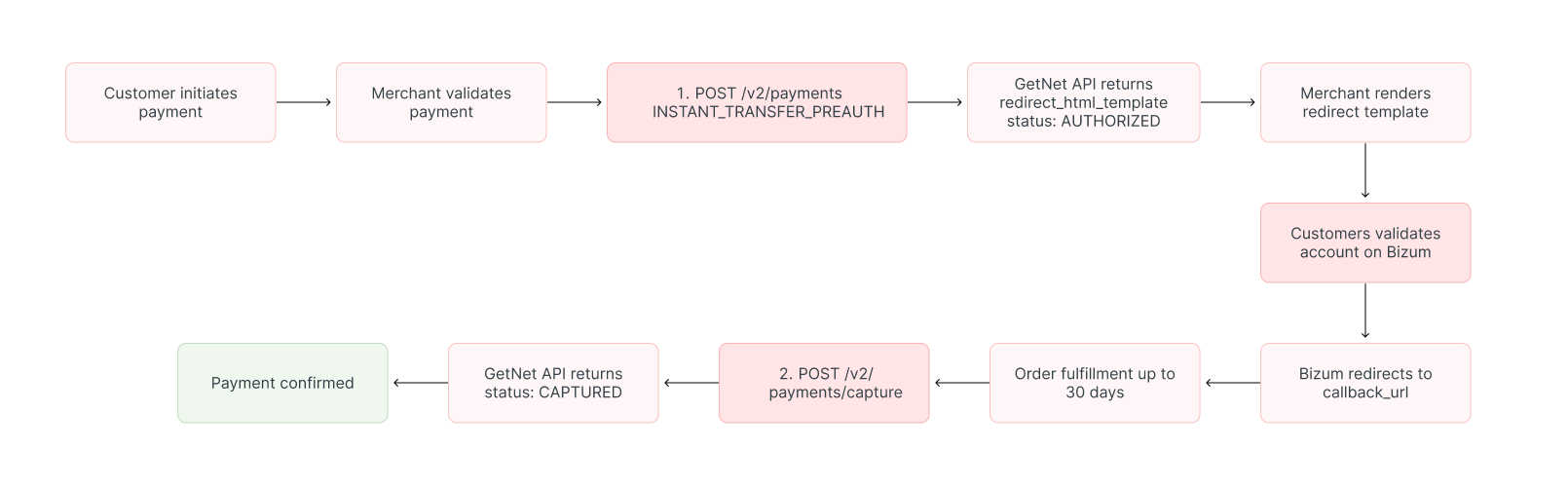
The diagram below provides an overview of the two-step flow:

<img height="287" width="926" src="https://static-devportal-ux.sensedia-eng.com/Pagonxt/production/documentations/diagram-bizum-1772649669417-dhbvzo20.png" />

### 1. Validate the Payment

Send the same endpoint request but set `payment_method = INSTANT_TRANSFER_PREAUTH`.

The next table lists the key attributes needed for the validation request.

| Attribute                           | Type          | Required | Description                                                                                                                                                         |
| :---------------------------------- | :------------ | :------- | :------------------------------------------------------------------------------------------------------------------------------------------------------------------ |
| `idempotency_key`                   | String (UUID) | Yes      | Unique identifier to ensure the request is processed only once. Use a UUID v4 format. If you retry a request with the same key, the API returns the original result |
| `request_id`                        | String (UUID) | Yes      | Unique identifier for tracking the request. Use a UUID v4 format for better traceability across systems                                                             |
| `order_id`                          | String        | Yes      | Your unique identifier for the purchase. This is the merchant's reference ID used for reconciliation purposes                                                       |
| `data.amount`                       | Integer       | Yes      | Transaction amount in cents (minor units). For example, `5000` represents €50.00. Must be a positive integer. Maximum `1500000` (€15,000)                           |
| `data.currency`                     | String        | Yes      | ISO 4217 currency code. Must be `EUR` for Bizum payments as they are only available in Spain                                                                        |
| `data.customer_id`                  | String        | No       | Unique identifier for the customer in your system. Useful for tracking customer payment history                                                                     |
| `data.payment.payment_method`       | String        | Yes      | Payment method identifier. Must be `INSTANT_TRANSFER_PREAUTH` for Bizum two-step (pre-authorization) payments                                                       |
| `data.payment.transaction_type`     | String        | Yes      | Transaction processing type. Must be `FULL` for Bizum as partial payments are not supported                                                                         |
| `data.additional_data.callback_url` | String (URL)  | Yes      | HTTPS endpoint where Bizum redirects the customer after they complete or cancel the payment. Must be publicly accessible and use HTTPS protocol                     |

Here is an example request that validates a Bizum payment.

```bash
curl --request POST \
  --url https://api-sbx.globalgetnet.com/dpm/payments-gwproxy/v2/payments \
  --header 'authorization: Bearer <your-token>' \
  --header 'content-type: application/json' \
  --header 'x-seller-id: 54f88e68-7764-4e87-8830-756b1e2c02f8' \
  --header 'x-transaction-channel-entry: XX' \
  --data '{
  "idempotency_key": "63c7f8ee-51a6-470d-bb76-ef762b62bfb9",
  "request_id": "daac03dc-73db-453f-9bea-b1391669d5d3",
  "order_id": "ORDER-10187384",
  "data": {
    "amount": 5000,
    "currency": "EUR",
    "customer_id": "customer-123",
    "payment": {
      "payment_method": "INSTANT_TRANSFER_PREAUTH",
      "transaction_type": "FULL"
    },
    "additional_data": {
      "callback_url": "https://your-store.com/payment/callback"
    }
  }
}'
```

The response mirrors the single-step example and includes the three required parameters (`merchant_data`, `signature_version`, and `signature`) in `additional_data` that you must use to build the redirect form.

### 2. Redirect the Customer

Extract the three parameters from the API response and build the HTML form as described in the [Redirect template example](#redirect-template-example). The customer approves the payment within Bizum, and you receive an `AUTHORIZED` status in the callback.

```json
{
  "idempotency_key": "10bba4d0-23ff-4950-ad6e-baa3f8590229",
  "seller_id": "2ab3e585-3607-467e-b2e8-420fcd45f48e",
  "payment_id": "777f851479c64541bd9c4e8fd4808fe9",
  "order_id": "ORDER-10187384",
  "amount": "5000",
  "currency": "EUR",
  "status": "AUTHORIZED",
  "received_at": "2025-11-03T14:18:59.991Z",
  "authorized_at": "2025-11-03T14:19:15.123Z",
  "reason_code": "00",
  "reason_message": "Authorization successful"
}
```

### 3. Capture the Validated Payment

When you are ready to complete the sale, call the [Capture endpoint](https://docs.globalgetnet.com/en/products/online-payments/regional-api/swagger#tag/payments/post/dpm/payments-gwproxy/v2/payments/capture). The `payment_method` must remain `INSTANT_TRANSFER_PREAUTH`. You can capture the payment within 30 days of validation. The request below captures the previously validated payment.

```bash
curl --request POST \
  --url https://api-sbx.globalgetnet.com/dpm/payments-gwproxy/v2/payments/capture \
  --header 'authorization: Bearer <your-token>' \
  --header 'content-type: application/json' \
  --data '{
  "idempotency_key": "11c7f8ee-51a6-470d-bb76-ef762b62bfb1",
  "payment_id": "777f851479c64541bd9c4e8fd4808fe9",
  "payment_method": "INSTANT_TRANSFER_PREAUTH",
  "amount": 5000
}'
```

If the capture succeeds you receive a response like this:

```json
{
  "seller_id": "54f88e68-7764-4e87-8830-756b1e2c02f8",
  "payment_id": "777f851479c64541bd9c4e8fd4808fe9",
  "idempotency_key": "11c7f8ee-51a6-470d-bb76-ef762b62bfb1",
  "order_id": "ORDER-10187384",
  "amount": 5000,
  "currency": "EUR",
  "status": "CAPTURED",
  "reason_code": "00",
  "reason_message": "Captured successfully",
  "captured_at": "2025-11-03T15:20:30.456Z"
}
```

### 4. Confirm Settlement

Check the transaction status or rely on Webhooks to confirm the payment has transitioned from `AUTHORIZED` to `CAPTURED`.

**Bizum-specific considerations:**

* **Payment method**: Always specify the correct `payment_method` value (`INSTANT_TRANSFER` or `INSTANT_TRANSFER_PREAUTH`) that was used in the original transaction.

> For detailed information about the refund process, full and partial refunds, timing considerations, and best practices, see the [Refund a Payment guide](/en/global-api/sep-api/payment-guides-api/card-payments/refund-payment).

## Webhooks

To receive asynchronous status updates for Bizum Redirect transactions, register webhook events via the Webhooks API. Bizum webhook events work differently from card payment webhooks — you must register the specific events below to cover all transaction lifecycle transitions.

| Event | Description |
| :---- | :---------- |
| `APPROVED_TRANSACTIONS` | Triggered whenever a Payout is processed |
| `AUTHORIZED_TRANSACTIONS` | Triggered whenever a transaction is authorized, in either the Single-step or Two-step flow |
| `CAPTURED_TRANSACTIONS` | Triggered whenever a post-authorization capture occurs (Two-step flow) |
| `CANCELLED_TRANSACTIONS` | Triggered when a cancellation is performed via the `/cancel` service |
| `PENDING_TRANSACTIONS` | Triggered whenever a transaction is created and is awaiting payment confirmation in Bizum |

## Redirect Template Example

After receiving the payment creation response, extract the three parameters from `additional_data` and build an HTML form that automatically submits to the Bizum payment gateway. The form must include the following hidden input fields with the exact names shown:

* `Ds_MerchantParameters` — use the value from `additional_data.merchant_data`
* `DS_SignatureVersion` — use the value from `additional_data.signature_version`
* `DS_Signature` — use the value from `additional_data.signature`

The form should POST to the URL found in `additional_data._links[0].href` from the API response.

<Callout type="warning">

Always use the URL from the API response, as it will differ between testing and production environments. The URL shown in the example below (`https://sis-t.redsys.es:25443/sis/realizarPago`) is for the testing  environment only. See the [Redirect template example](#redirect-template-example) for a complete implementation.

</Callout>

Here is a complete HTML template that you can use:

```html
<!DOCTYPE html>
<html lang="en">
<head>
    <meta charset="UTF-8">
    <meta name="viewport" content="width=device-width, initial-scale=1.0">
    <title>Payment Redirect</title>
    <style>
        body {
            font-family: Arial, sans-serif;
            display: flex;
            justify-content: center;
            align-items: center;
            min-height: 100vh;
            margin: 0;
            background-color: #f5f5f5;
        }
        .redirect-container {
            text-align: center;
            background: white;
            padding: 40px;
            border-radius: 10px;
            box-shadow: 0 2px 10px rgba(0,0,0,0.1);
        }
        .spinner {
            border: 4px solid #f3f3f3;
            border-top: 4px solid #d50000;
            border-radius: 50%;
            width: 40px;
            height: 40px;
            animation: spin 1s linear infinite;
            margin: 0 auto 20px;
        }
        @keyframes spin {
            0% { transform: rotate(0deg); }
            100% { transform: rotate(360deg); }
        }
        h2 {
            color: #333;
            margin-bottom: 10px;
        }
        p {
            color: #666;
            margin-bottom: 20px;
        }
    </style>
</head>
<body>
    <div class="redirect-container">
        <div class="spinner"></div>
        <h2>Redirecting to Payment Gateway</h2>
        <p>Please wait while we redirect you to complete your BIZUM payment...</p>
    </div>

    <form id="paymentForm" action="https://sis-i.redsys.es:25443/sis/realizarPago" method="POST" style="display: none;">
        <!-- Hidden input fields required by the payment processor -->
        <!-- Note: The action URL above is for UAT environment only. Use the URL from additional_data._links[0].href in production -->
        <input type="hidden" name="Ds_Signature" value="XXXXXXXXXXXXXXXXXXXXXXXXXXXXXXXXXXXXXX">
        <input type="hidden" name="Ds_SignatureVersion" value="T25V2">
        <input type="hidden" name="Ds_MerchantParameters" value="XXXXXXXXXXXXXXXXXXXXXXXXXXXXXXXXXXXX">
    </form>
    
    <script>
        // Automatically submit the form after the page loads
        window.onload = function() {
            // Add a small delay to show the loading screen briefly
            setTimeout(function() {
                const form = document.getElementById("paymentForm");
                if (form && form.action && form.action !== "{{href}}") {
                    form.submit();
                } else {
                    // If no valid action URL, show error
                    document.querySelector('.redirect-container').innerHTML = 
                        '<h2 style="color: #d50000;">Error</h2>' +
                        '<p>Payment redirect URL not found. Please contact support.</p>';
                }
            }, 1500);
        };
    </script>
</body>
</html>
```

**Important:** Replace the placeholder values in the form with the actual values from the API response:

* Replace `XXXXXXXXXXXXXXXXXXXXXXXXXXXXXXXXXXXXXX` in `Ds_Signature` with the value from `additional_data.signature`.
* Replace `T25V2` in `Ds_SignatureVersion` with the value from `additional_data.signature_version`.
* Replace `XXXXXXXXXXXXXXXXXXXXXXXXXXXXXXXXXXXX` in `Ds_MerchantParameters` with the value from `additional_data.merchant_data`.
* Replace the `action` URL with the value from `additional_data._links[0].href`.

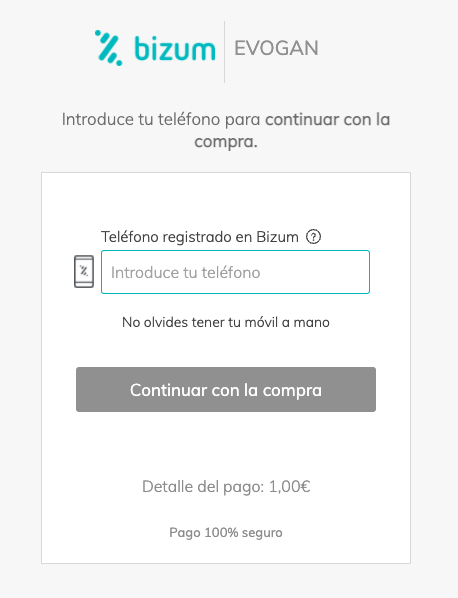
After the form is automatically submitted, the buyer will be redirected to the Bizum checkout page where they can complete the payment. The checkout page looks similar to this:

<img height="446" width="342" src="https://static-devportal-ux.sensedia-eng.com/Pagonxt/staging/documentations/image-2-1763723084000-wyc6xrc8.png" />

## Decoding `merchant_data`

The following Node.js example demonstrates how to retrieve the payment and decode the Base64 `merchant_data` payload.

```bash
// Node.js/Express example
app.get('/payment/callback', async (req, res) => {
  const { payment_id } = req.query;

  const response = await fetch(
    `https://api-sbx.globalgetnet.com/dpm/payments-gwproxy/v2/payments/${payment_id}`,
    {
      headers: {
        'authorization': 'Bearer <your-token>',
        'x-seller-id': '54f88e68-7764-4e87-8830-756b1e2c02f8'
      }
    }
  );

  const payment = await response.json();

  if (payment.additional_data?.merchant_data) {
    const merchantData = JSON.parse(
      Buffer.from(payment.additional_data.merchant_data, 'base64').toString('utf-8')
    );
    console.log('Decoded payment data:', merchantData);
  }

  if (payment.status === 'APPROVED' || payment.status === 'CAPTURED') {
    res.redirect(`/order/success?order_id=${payment.order_id}`);
  } else {
    res.redirect(`/order/failed?order_id=${payment.order_id}`);
  }
});
```