
Google Pay™ Payments

This document apply to the following country:
| Brazil |
|---|
Accept payments through Google Pay™, Google’s digital wallet. The buyer pays with a card saved to their Google account, and your integration receives an encrypted payment token instead of the real card number.
This guide walks you through creating a payment intent, obtaining the Google Pay token on the frontend, and submitting the payment through a single Web Checkout API integration.
How it works
Use Google Pay when you want to offer a fast, tokenized checkout to buyers on Android and web, without them having to type in card details. Key characteristics:
- No card entry: the buyer pays with the cards already saved to their Google account.
- Encrypted token: the frontend obtains a payment token from the Google Pay API and forwards it to Getnet. The real card number is never exposed.
- Native authentication: Bypasses the 3DS flow.
- No prior session validation: Google Pay does not require a session validation step.
- Synchronous processing: submitting the payment returns the result (status / authorization_code) in the same call.
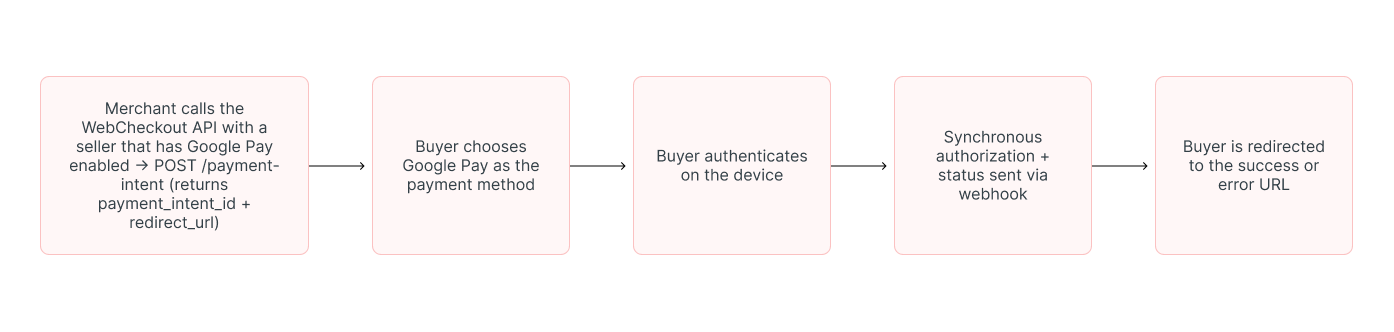
The end-to-end flow involves the buyer, your frontend, your backend, and the Getnet Web Checkout API:
Before you start
Make sure the following are in place before integrating:
- The seller (x-seller-id) has Google Pay enabled.
- Your Google Pay API integration on the frontend is configured with the correct gateway and gatewayMerchantId so the token can be processed by Getnet.
- Generate your token following the Authentication document
- Domain onboarding is complete for your integration type (see below).
Technical onboarding by integration type
| Integration type | Domain registration |
|---|---|
| Link & Redirect API | Uses the Getnet domain, no merchant domain registration required. |
| Iframe & Lightbox | The merchant domain differs from the Getnet domain. The merchant must provide its domain in the Web Checkout configuration so Getnet can register it with Google. |
The checkout type (Iframe & Lightbox) and the options that will be accepted can be set at the Merchant Portal or by API, follow the document steps to configure by Merchant Portal or by API.
Step 1: Create the payment intent
Call the Web Checkout API to create a payment intent. It returns a payment_intent_id and a redirect_url.
| Endpoint |
|---|
POST /payment-intent |
Required fields
| Field | Type | Description | Example |
|---|---|---|---|
payment.currency | String | Currency code. | BRL |
payment.amount | Integer | Purchase amount in integer format, where the last 2 digits represent the cents. For countries where cents do not apply, fill in the amount with 2 zeros to the right. | 92500 |
customer.customer_id | String | Recommend using the customer’s document number, only letters and numbers, without any special characters, separators or spaces. | 12345678912 |
customer.first_name | String | Customer’s first name. | John |
customer.last_name | String | Customer’s last name. | Doe Smith |
customer.name | String | Customer’s full name. | John Doe Smith |
customer.email | String | Customer’s email address. | customer@email.com.br |
customer.document_type | String | Type of the document used to identify the customer. | CPF |
customer.document_number | String | Document number used to identify the customer. | 12345678912 |
customer.billing_address.street | String | Name of a street. | Av. Brasil |
customer.billing_address.number | String | Number that identifies the position of a building on a street. | 1000 |
customer.billing_address.country | String | Country code. | BR |
customer.billing_address.postal_code | String | Postal or ZIP code. | 90230060 |
Optional fields
| Field | Type | Description | Example |
|---|---|---|---|
configurations.3ds | boolean | Controls 3D Secure authentication. | true or false |
configurations.preauthorization | boolean | Indicates if the payment is a pre-authorization. | true or false |
configurations.card_verification | boolean | Indicates if this is a card verification flow. | true or false |
configurations.success_url | string | Redirect URL in case of successful payment. | https://www.mystore.com/checkout/success |
configurations.error_url | string | Redirect URL in case of an error during payment. | https://www.mystore.com/checkout/error |
product | array | Line items. | --- |
soft_descriptor | string | Payment description that appears on the customer’s receipt | Loja BR |
expires_at | string | Payment intent expiration. | 3d4h15m |
Field filling rules:
- The
expires_atfield accepts a duration value (for example, 15m, 2h, 7d, or 1d12h30m). This duration is applied regardless of the merchant’s timezone. The expiration timestamp returned by the API is always formatted in GMT+0 (UTC). If no value is provided, the payment intent does not expire. - When
success_urlanderror_urlis provided in the payment intent request, it will overrides the value configured in the seller’s technical configuration.
Example of request:
{
  "mode": "instant",
  "order_id": "ORDER_GPAY_BR_0001",
  "configurations": {
    "3ds": true,
    "preauthorization": false,
    "card_verification": false,
    "success_url": "https://www.mystore.com/checkout/success",
    "error_url": "https://www.mystore.com/checkout/error"
  },
  "payment": {
    "currency": "BRL",
    "amount": 92500
  },
  "product": [
    {
      "product_type": "service",
      "title": "Plano Pro",
      "description": "Assinatura 1 mes",
      "value": 92500,
      "quantity": 1
    }
  ],
  "customer": {
    "customer_id": "customer_br_005",
    "first_name": "Jose",
    "last_name": "da Silva",
    "name": "Jose da Silva",
    "email": "customer@email.com",
    "document_type": "CPF",
    "document_number": "12345678909",
    "phone_number": "5511999998888",
    "checked_email": true,
    "billing_address": {
      "street": "Av. Paulista",
      "number": "1000",
      "complement": "Cj 101",
      "district": "Bela Vista",
      "city": "Sao Paulo",
      "state": "SP",
      "country": "BR",
      "postal_code": "01310100"
    }
  },
  "soft_descriptor": "Loja BR",
  "expires_at": "1h"
}
Step 2: Redirect and obtain the token
Redirect the buyer to the redirect_url, or show the embedded checkout screen where they choose Google Pay. The buyer authenticates on their Android device or browser (bypassing 3DS).
Step 3: Confirm the result
Google Pay is synchronous, the call returns status and authorization_code. Confirm the result as well via webhook to notification.url before releasing the order.
Webhook status can be Authorized or Denied.
Approved webhook response
Example of response:
{
  "payment_intent_id": "ee0b7dd5-92da-4ef4-ad3b-0ba369ad0efe",
  "checkout_id": "5ab15d1e-ea8b-4560-84d2-fb3d02179537",
  "order_id": "ORDER_GPAY_BR_0001",
  "mode": "instant",
  "seller": {
    "id": "716d899e-9091-4577-a12f-8a77ec4d1e0b",
    "trade_name": "GetNet Shop",
    "merchant_document": "00000000000",
    "settings": { "notification_url_configured": true }
  },
  "customer": {
    "customer_id": "customer_br_005",
    "name": "Jose da Silva",
    "email": "customer@email.com",
    "document_type": "CPF",
    "document_number": "12345678909"
  },
  "payment": {
    "method": "google_pay",
    "amount": 92500,
    "currency": "BRL",
    "result": {
      "payment_id": "9c8f0e2a-1b3d-4c5e-8a7f-2d1e0b9c8a7d",
      "status": "Authorized",
      "authorization_code": "123456",
      "transaction_datetime": "2026-07-08T12:00:00.000Z"
    }
  },
  "created_at": "2026-07-08T11:59:30.000Z",
  "updated_at": "2026-07-08T12:00:00.000Z"
}Denied webhook response
Example of response:
{
  "payment_intent_id": "ee0b7dd5-92da-4ef4-ad3b-0ba369ad0efe",
  "checkout_id": "5ab15d1e-ea8b-4560-84d2-fb3d02179537",
  "order_id": "ORDER_GPAY_BR_0001",
  "mode": "instant",
  "payment": {
    "method": "google_pay",
    "amount": 92500,
    "currency": "BRL",
    "result": {
      "payment_id": "9c8f0e2a-1b3d-4c5e-8a7f-2d1e0b9c8a7d",
      "status": "Denied",
      "transaction_datetime": "2026-07-08T12:01:00.000Z",
      "return_message": "Card not accepted for this operation"
    }
  },
  "created_at": "2026-07-08T11:59:30.000Z",
  "updated_at": "2026-07-08T12:01:00.000Z"
}